This checklist is for anyone who wants to gather tax paperwork in one place and make it easier to find when needed. A simple organizing system can help you keep documents together, whether you prefer paper records, digital copies, or both.

Get smart everyday buys delivered free with Prime
- Fast, free delivery on millions of items
- Prime Video, Amazon Music and more included
- Member-only deals all year
The sections move from planning your filing system to storing, scanning, labeling, carrying, and backing up documents. Each product pick has a different role, so consider how it fits with the records you actually keep and the space you have available.
Use the checklist to choose only the tools that solve a real need. Start by deciding how you’ll sort documents and protect sensitive information, then check capacity, portability, and compatibility before buying. Keep digital copies organized and handle originals according to your own recordkeeping needs.
Tax document organizer
A tax document organizer is the system you use to gather and sort paperwork before and during tax preparation. It can be as simple as labeled categories in a folder or a consistent digital folder structure. The key is to choose categories that make sense for your records, such as income, expenses, deductions, and documents to review. A clear setup helps you see what has arrived and what still needs attention.
A common mistake is creating too many categories before you know what paperwork you receive. That can make filing feel harder and lead to documents being put in the wrong place. Another is relying on memory instead of a repeatable routine. Set aside a single intake spot, then sort documents on a regular schedule. If you keep paper and digital records, decide which is your primary copy and how you’ll connect related items. Use consistent names and labels so files are easy to locate later, and avoid putting sensitive details on labels that are visible to others.
What to look for:
- Choose categories that match the documents you receive.
- Create one intake location for unsorted paperwork.
- Use consistent labels across paper and digital files.
- Plan how to distinguish originals from copies.
- Keep sensitive information out of visible folder names.
Locking file box
A locking file box can keep paper records together and add a physical access barrier when documents are not in use. It may be useful for tax papers you want stored in one portable container, especially when several folders need to stay together. Before choosing a box, consider where you’ll keep it and whether its dimensions suit the documents and folders you plan to store.
The listed pick is an Aluminum Alloy Portable Document Case File Box with Locking Security a. The product name indicates a locking case, but it does not provide dimensions or interior capacity, so check those details before deciding whether it will fit your records. A common buying mistake is assuming “portable” means lightweight or roomy enough for a growing file collection. Consider how often you’ll carry it, how the lock is used, and whether you can keep the key or access details in a secure, known place. A lock can support a storage routine, but it does not replace careful handling of sensitive documents. Choose usable capacity and fit before appearance, and make sure the case works with your existing folders.
What to look for:
- Confirm interior dimensions and capacity.
- Check how the locking mechanism is opened and secured.
- Match the interior space to your folders and paper size.
- Consider where the case will be stored and carried.
- Plan a secure place for keys or access details.
Aluminum Alloy Portable Document Case File Box with Locking Security and Telesco
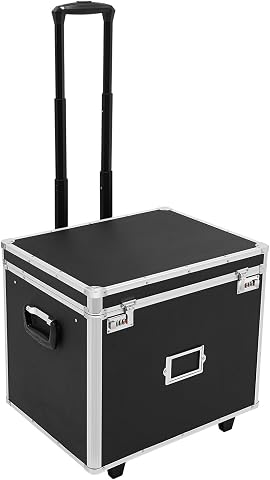
This durable aluminum alloy file box offers a stylish and organized storage solution for documents, notebooks, and office supplies. It features lockable security, large capacity, and easy mobility with wheels and a telescopic handle, making it ideal for office, home, or bank use.
Pros:
- Sturdy and corrosion-resistant aluminum alloy construction
- Secure locking system to protect valuables
- Large capacity with organized storage features
- Easy to transport with wheels and telescopic handle
Cons:
- Heavy for some users at 12 lbs
- Limited color options
- No mention of waterproof features
Best for: People who want tax papers together in a locking case.
Not ideal for: Anyone who needs confirmed capacity without checking specifications.
Bottom line: Verify fit and lock details before using it for your paper records.
Portable document scanner
A document scanner can help create digital copies of paper records, making them easier to organize alongside files already stored on a computer or drive. The listed pick is the CZUR ET MAX Professional Book and Document Scanner, 38MP. Consider the kinds of pages you intend to scan and whether the scanner’s workflow suits your desk space and typical tasks.
A common mistake is focusing on the resolution figure alone without checking how the device handles the materials you have. Look for supported document sizes, the software and computer compatibility, connection requirements, and how files can be saved in your preferred format. If you scan books or bound materials as well as loose pages, confirm that the scanner’s design supports your intended use. Think through where scans will go and how you’ll name them; an unstructured folder can become as difficult to search as a paper stack. Keep originals when needed for your own records, and verify each scan is legible before putting the source document away. Workflow compatibility matters as much as image capture: a scanner is most useful when its output fits the way you already store and retrieve files.
What to look for:
- Confirm supported document sizes and material types.
- Check computer, software, and connection compatibility.
- Verify output formats and destination options.
- Consider desk space and the scanning workflow.
- Review scans for legibility before filing originals.
CZUR ET MAX Professional Book and Document Scanner, 38MP
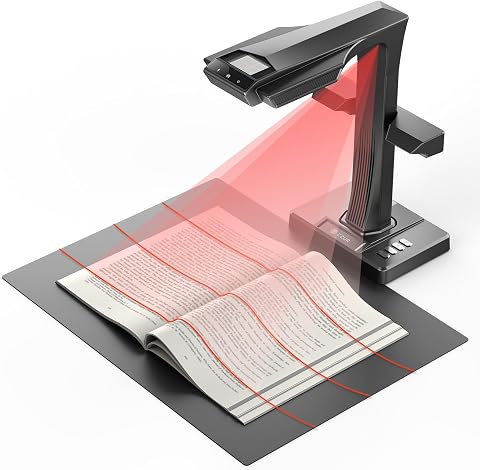
The CZUR ET MAX captures documents at up to 7168 × 5376 resolution using a 38MP CMOS sensor and supports scanning materials up to A3 size. Its curve-flattening technology helps correct curved book pages, while OCR can create editable and searchable files in more than 180 languages.
Pros:
- Curve-flattening technology helps reduce distortion when scanning bound books.
- OCR supports editable and searchable documents in more than 180 languages.
- Supports scanning up to A3 size and provides HDMI output for live display.
- Compatible with Windows, macOS, and supported Ubuntu versions.
Cons:
- Not recommended for glossy or highly reflective materials.
- Linux support is limited to Ubuntu 20.04–24.04.
Best for: People who want digital copies of paper documents.
Not ideal for: Anyone who needs a compact scanner without checking its footprint.
Bottom line: Match the scanner’s supported materials and software to your workflow.
Thermal label printer
Labels can make folders, boxes, and storage areas easier to identify at a glance. The Rollo USB Shipping Label Printer – 4×6 Thermal Printer is the listed pick for this slot. Before choosing it for organizing tax records, consider whether its label format and connection suit the labels and computer setup you plan to use.
A common buying mistake is assuming a shipping label printer will work with every label size or labeling task. Check supported label dimensions, software requirements, operating system compatibility, and whether the device works with the label stock you intend to use. The product name specifies 4×6 thermal printing and USB, but confirm the details that matter for your setup. For folder tabs or small file labels, a 4×6 format may not match the intended use, so verify the printer’s supported options rather than guessing. Keep labels concise and avoid printing personal identifiers or sensitive tax details where they might be seen. Label size and compatibility determine whether this pick fits your filing system; plan the label layout before making it part of your routine.
What to look for:
- Confirm the label dimensions supported by the printer.
- Check USB and computer operating system compatibility.
- Verify software and label stock requirements.
- Match the format to folders, boxes, or other intended surfaces.
- Keep sensitive details off visible labels.
Rollo USB Shipping Label Printer – 4×6 Thermal Printer

The Rollo USB Shipping Label Printer is a commercial-grade thermal printer that prints 4×6 shipping labels at high speed (150mm/s) with 203 DPI resolution. It is compatible with Windows and Mac, works with major shipping platforms like FedEx, UPS, USPS, and supports custom label creation for barcodes, stickers, and more.
Pros:
- High-speed printing at 150mm/s (one 4×6 label per second)
- Inkless direct thermal technology saves on ink and toner costs
- Compatible with major shipping platforms and marketplaces
- Custom label maker for various label types
Cons:
- USB-only connectivity (no wireless options)
- Monochrome printing only
- Limited to 30 sheets at a time
Best for: People who need labels in a supported 4×6 format.
Not ideal for: Anyone seeking small folder labels without confirming format support.
Bottom line: Check label size and software compatibility before choosing this printer.
Accordion file folder
An accordion folder can separate records into sections while keeping them together in a portable format. The listed pick is the Accordion File Organizer with Handle, 15.6-inch Laptop Bag, Portable D. Consider whether you need expanding compartments, a handle for carrying, or space that can accommodate the folders and documents you plan to bring along.
The product name includes “15.6-inch Laptop Bag,” but that alone does not establish the capacity or protection offered for paper files. Check compartment dimensions, closure details, and how the sections are arranged. A frequent mistake is choosing an organizer based on its overall size without checking whether letter-size documents lie flat or whether dividers suit your categories. Think about how much paperwork you will carry at once: a portable organizer can become awkward when overfilled, while too few sections can make sorting less useful. If you plan to carry a laptop as well, confirm that the layout actually fits your devices and documents together. Use clear section labels and keep sensitive paperwork secured while traveling. Choose based on the actual dimensions and organization, not only the product title.
What to look for:
- Check compartment dimensions and document fit.
- Confirm the number and arrangement of sections.
- Review closure and carrying details.
- Estimate how much paperwork you need to carry at once.
- Verify laptop fit separately if you intend to carry one.
Accordion File Organizer with Handle, 15.6-inch Laptop Bag, Portable Document Or

This multi-functional file organizer features a 15.6-inch laptop compartment, accordion file sections, and multiple pockets for documents, cards, and accessories. Made of water-resistant PU leather, it combines durability with a stylish design, suitable for work, study, and travel.
Pros:
- Stylish and professional appearance
- Multiple compartments for organized storage
- Durable water-resistant material
- Easy to carry with handle and shoulder strap
Cons:
- May be bulky when fully loaded
- Limited color options (not specified)
- Zipper quality not detailed
Best for: People who want categorized papers in a handled organizer.
Not ideal for: Anyone who needs confirmed laptop or document fit from the title alone.
Bottom line: Check compartment dimensions and layout against what you plan to carry.
USB flash drive
A USB flash drive can hold digital copies of tax documents for storage or transfer, provided it works with your devices and file workflow. The listed pick is the Apricorn Aegis Padlock 2TB Hardware-Encrypted Portable External Hard D. Before choosing it, consider the computer ports and operating systems you use, how you’ll manage access, and whether its capacity suits your files.
A common mistake is treating a drive as the only copy of important records. Decide how it fits into your broader backup routine, and keep it in a secure place when it is not connected. The product name identifies a 2TB hardware-encrypted portable external hard drive, but verify connection options, operating system support, and how the access controls work with your setup. Make sure you understand how to unlock it and maintain access, then test your file organization with nonessential documents before relying on it. Keep file names useful without exposing sensitive personal details, and avoid leaving the drive unattended when it contains private records. Device compatibility and access are essential: capacity is useful only if you can connect to the drive and retrieve the files when needed.
What to look for:
- Confirm connection options for your devices.
- Check operating system support and file system compatibility.
- Understand how the hardware access controls work.
- Plan a secure storage location and backup routine.
- Use organized file names that avoid sensitive details.
Apricorn Aegis Padlock 2TB Hardware-Encrypted Portable External Hard Drive

This portable 2TB drive uses 256-bit AES XTS hardware encryption and an integrated keypad for PIN-based access. It connects over USB 3.0, requires no software or administrator rights, and supports up to five user PINs plus an administrator PIN.
Pros:
- Hardware encryption with keypad-based PIN access
- Works without software installation or administrator rights
- Compatible with PC, Mac, and USB-enabled operating systems
- Rugged design with epoxy coating and brute-force self-destruct feature
Cons:
- Uses a rotating 5400 rpm hard drive
- Requires PIN entry through the integrated keypad
Best for: People who want portable digital storage with hardware encryption.
Not ideal for: Anyone who needs a drive without checking device compatibility.
Bottom line: Confirm access and compatibility, then include the drive in a broader backup routine.
Build your system in a practical order: first decide how you’ll sort documents, then add storage for paper records, scanning, or labels only where they help. If you carry records, consider a portable organizer; if you keep digital copies, plan storage and backups. Check fit and compatibility before adding each tool so the pieces work together.
You do not need every item to make tax paperwork easier to manage. Start with a clear intake spot and a few consistent categories, then adjust as you learn what you receive and use. A steady routine and careful handling of sensitive records can make the checklist useful throughout the year.